
Overview
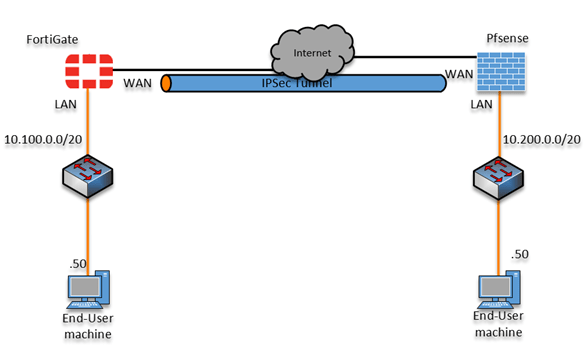
Today we will be going over how to create a Site to Site VPN between a Fortigate Appliance and a PFSense Firewall. Below is a overview of the Topology we are got to be using
Fortigate
VPN Tunnel
- Login to your Fortigate Appliance
- Under VPN > IPSec Wizard
Name the Tunnel your prefered name and select Custom 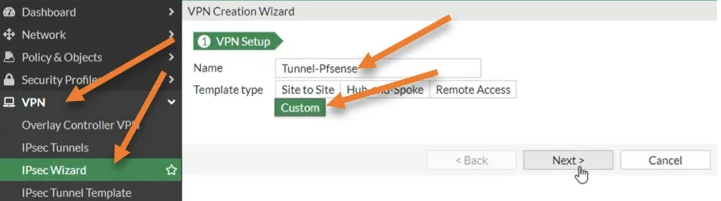
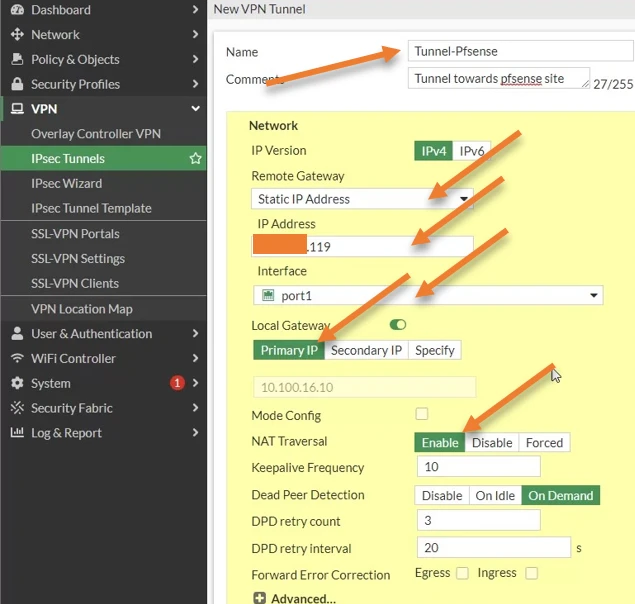
Configure the VPN Tunnel settings
a) Set the Remove Gateway to the WAN IP of your PFSense Firewall
b) Set the Interface to your WAN interface
c) Enable NAT Traversal
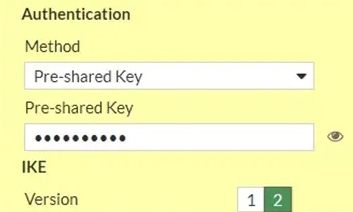
Configure Authentication
a) Set the Authentication Method to Pre-shared Key
b) Enter a Pre-shared Key
c) Select IKE version 2
Configure Phase 1 Proposal
a) Encryption: AES128
b) Authentication: SHA256
c) Diffie-Hellman Group: 14
d) Key Lifetime: 28800

Configure Phase2 Configuration
a) Configure the Phase2 Name
b) Configure the Local Address
c) Configure the Remove Address

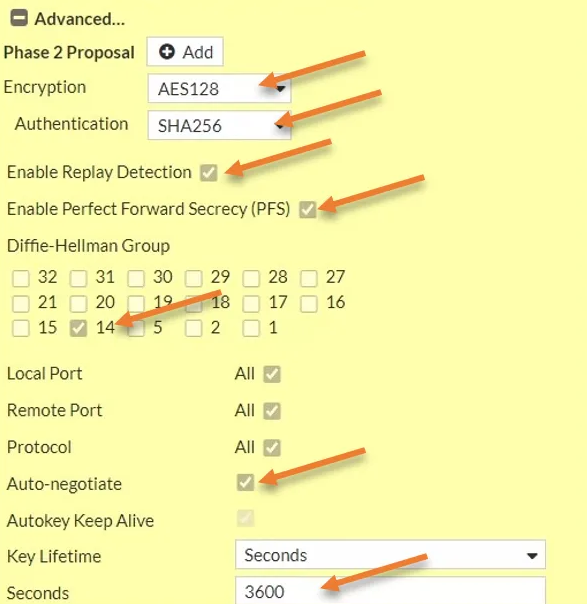
Configure the Phase2 Proposal
a) Encryption: AEC128
b) Authentication: SHA2556
c) Enable Replay Detection
d) Enable Pefect Forward Secrecy (PFS)
e) Diffie-Hellman Group: 14
f) Enable Auto-negotiate
g) Seconds: 3600
Security Policy
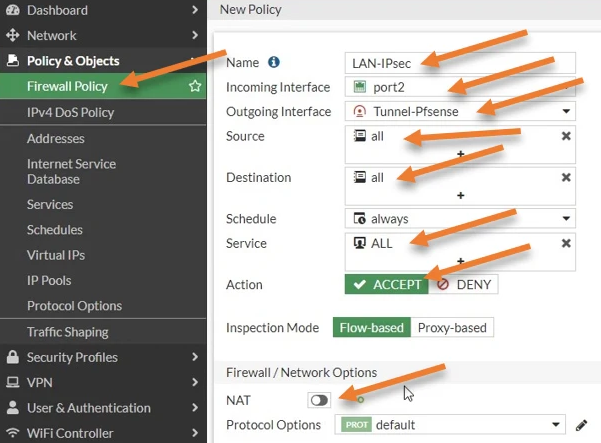
Configure a Policy to allow traffic from LAN to our IPSec Tunnel
a) Incoming Interface: LAN Network Interface
b) Outgoing Interface: Our IPSec Tunnel
C) Source: All
d) Destination: All
e) Services: All
f) Action: ACCEPT
g) Disable NAT
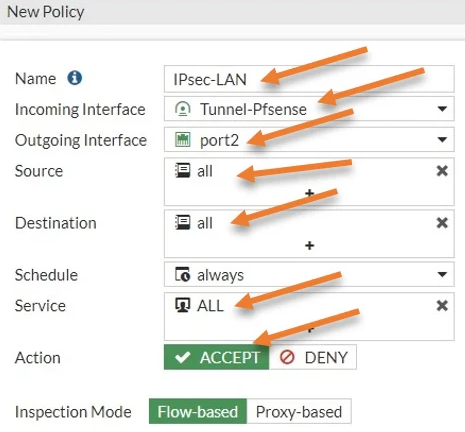
Configure a policyt to allow traffic coming from our IPSec tunnel to our LAN
NOTE: This must be a seporate policy and cannot be combined with our first Policy
a) Incoming Interface: our IPSec Tunnel
b) Outgoing Interface: Our LAN Network Interface
C) Source: All
d) Destination: All
e) Services: All
f) Action: ACCEPT
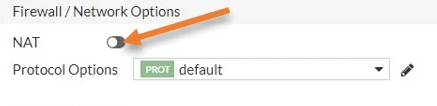
g) Disable NAT
Static Route
- Navigate to Network > Routing > Static Routes > Create New
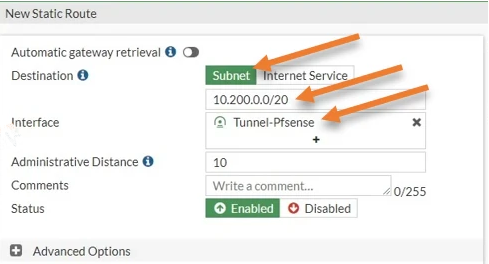
PFSense
VPN Tunnel
- Log into PFSense and naviagte to VPN > IPSec
- Select Add P1
Configure the Phase 1 Configuration
a) Set Interface to WAN
b) Set Remote Gateway to the WAN IP of your Fortigate Appliance
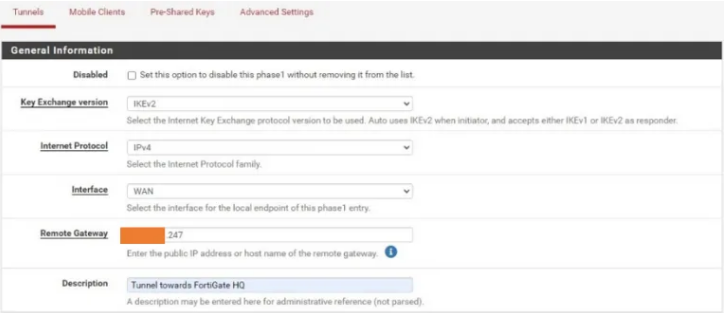
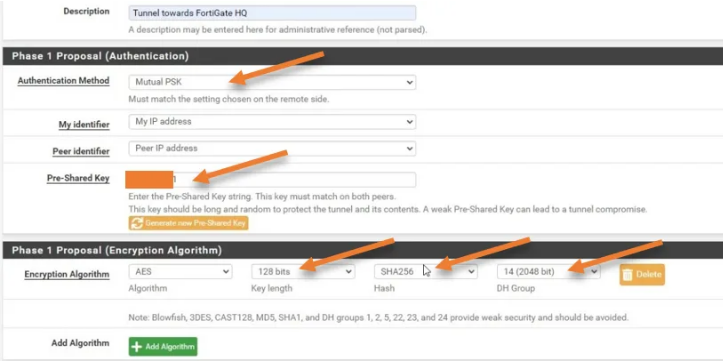
Configure Phase 1 Authentication
a) Authentication Method: Mutual PSK
b) Enter the Pre-Shared key you created in Fortigate
c) Confgigure the Encryption Algorithm as follows
- Key Length: 128 bit
- Hash: SHA256
- DH Group: 14 (2048 bit)
- Configure the Life Time
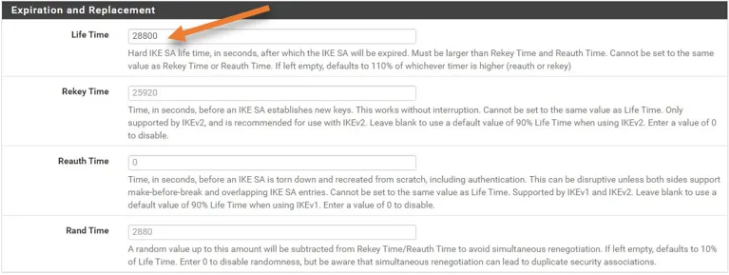
- Add a P2
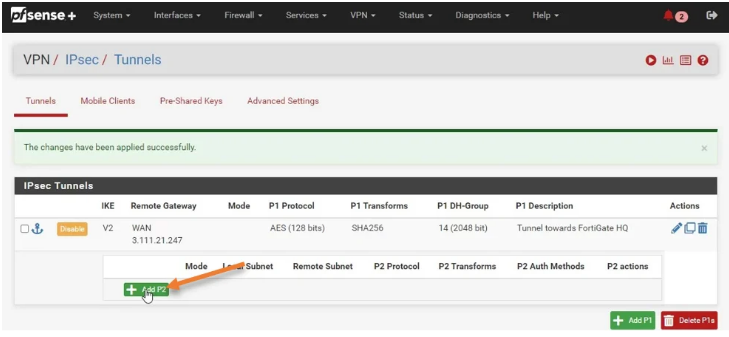
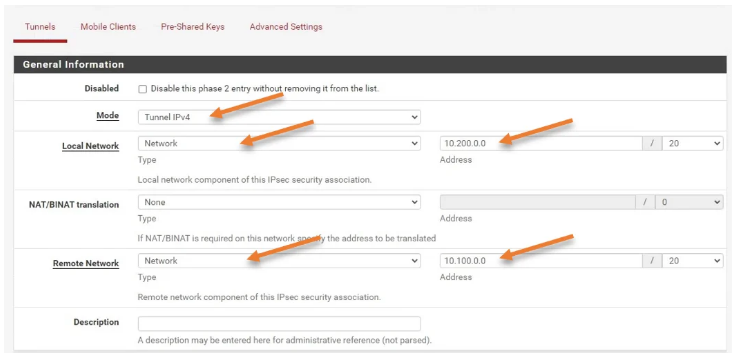
Configure the P2 Network Configuration
a) Mode: Tunnel IPv4
b) Local Network: Configured to your LAN Network for this firewall
C) Remote Network: Configure the LAN Network for your Fortigate Firewall
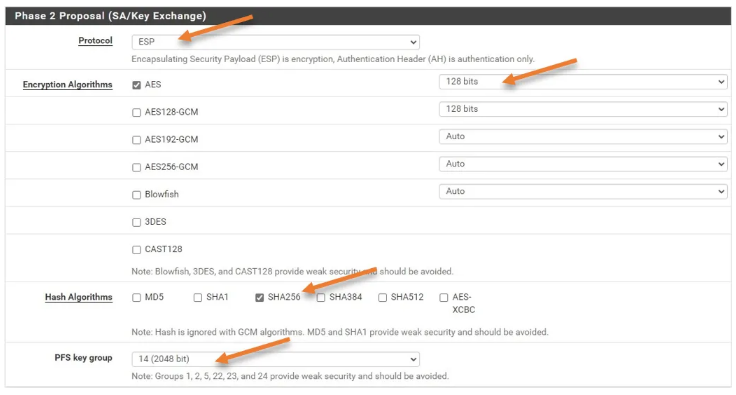
Configure the Phase 2 Proposal
a) Encryption Algorithms: AES 128 bits b) Hash Algorithms: SHA256 c) PFS Key Group: 14 (2048bit)
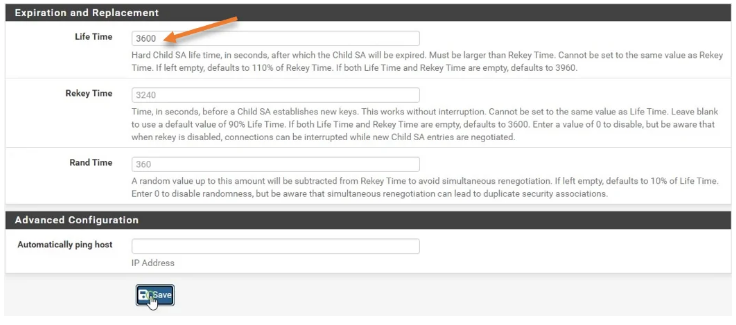
- Configure Life Time
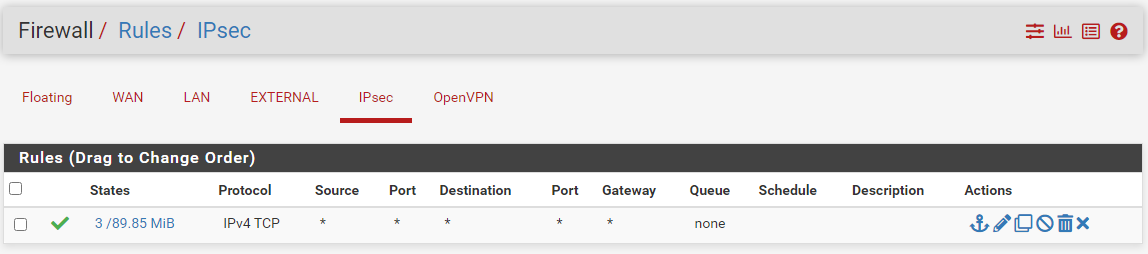
Security Policy
If you would like to be able to access everything behind the PFSense Firewall. you will need to create a Default allow any any rule
Static Route
There is No Static Routes Required on the PFSense Firewall