
Overview
Enabling Google Workspace’s MFA enforcement will remove users ability to disable 2-Step Verification (MFA). This is useful to ensure users do not enable the feature when speaking with you and then disable it after you leave.
Enabling MFA Enforcement
- Navigate to Security Settings
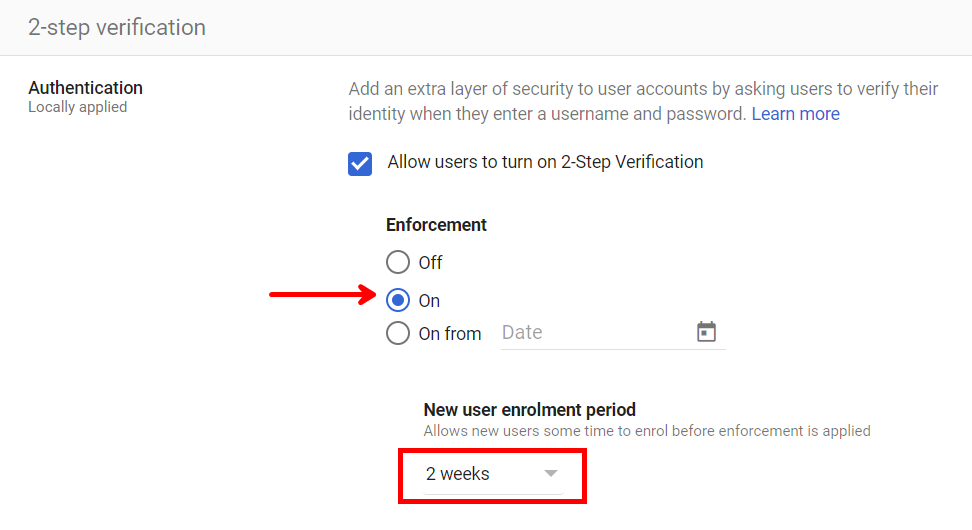
- Select enforce and set the New User Enrollement Period
![Image1]()
- Select Save
Caveats
- Unfortunitly when you enable this feature it only effects new user logins and not existing sessions. This can be resovle by terminating any existing user session forcing the users that do not have MFA configured to reauthenticate and thus starting a new session (Download Script)
1
2
3
4
 Write-Output "primaryEmail,isEnrolledIn2Sv" >> users.csv
 gam print users is2svenrolled | Select-String False | Out-File users.csv -Append
 gam csv users.csv gam user ~primaryEmail signout
 Remove-Item users.csv
- Ensure you have Backup Codes Generated for all users prior to enabling this feature to ensure they can still sign in once the feature is enabled this can be done with the below command
1
gam all users update backupcodes
- Depending on where you look in the Google Workspace Admin Dashboard you could be looking at recent data to rather outdated data on who has MFA enabled in your Organization. To get realtime data you can run the below command to see the status of who does not have it enabled
1
gam print users is2svenrolled | Select-String "False"